


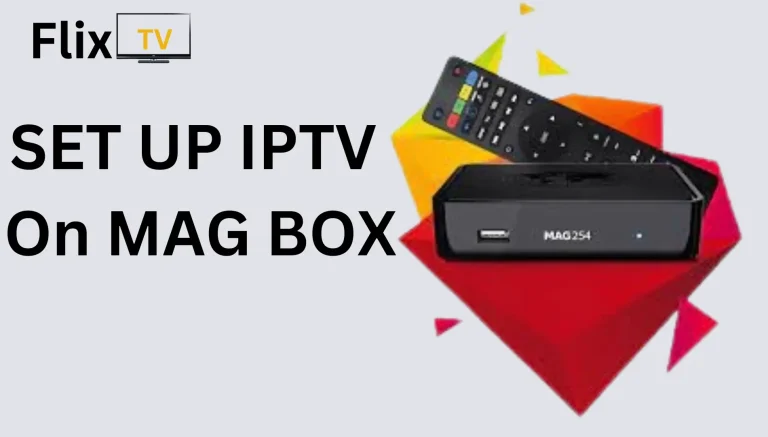
MAG boxes (Infomir) are among the most reliable IPTV devices for users who want fast channel switching, stable performance, and a true set-top box experience.
This guide will show you step-by-step how to install and set up IPTV on any MAG device, including:
-
MAG 250 / 254 / 256
-
MAG 322 / 324 / 349
-
MAG 420 / 424
-
MAG 520 / 522 / 524 / 524W3
Whether you’re using a new subscription or replacing a previous portal, this guide covers everything you need to get your IPTV working smoothly.
✅ 1. Requirements Before You Start
Before setting up IPTV on your MAG box, make sure you have:
✔ 1. A working MAG device
Connected to the internet via Ethernet (recommended) or Wi-Fi.
✔ 2. A valid IPTV subscription
Your IPTV provider must supply:
-
Portal URL (e.g.,
http://exampleportal.com/c/) -
Activation based on your MAG’s MAC address
✔ 3. Your MAG box MAC address
Go to:
Settings → Device Info → MAC address
(Usually starts with 00:1A:79:)
✅ 2. How to Set Up IPTV Portal on MAG Box
Follow these steps exactly to install IPTV portal on any MAG box.
🔹 Step 1: Open Settings
From the MAG home screen → press Menu → go to Settings.
🔹 Step 2: Select “System Settings”
Navigate to:
Settings → System Settings
🔹 Step 3: Go to “Servers”
Inside System Settings → choose Servers.
🔹 Step 4: Open “Portals”
Go to:
Servers → Portals
You will see:
-
Portal 1 Name
-
Portal 1 URL
-
(Some models support Portal 2 as well)
🔹 Step 5: Enter Portal Name & Portal URL
Example format (use your provider’s details):
-
Portal Name: IPTV Service
-
Portal URL:
http://yourportalurl.com/c/
⚠ Important:
Portal URL must be entered exactly as provided, including http or https.
🔹 Step 6: Save Settings
After entering the Portal URL → press OK or Save.
🔹 Step 7: Reboot Your MAG Box
Restart device:
Menu → Reboot device
(or unplug power and plug back in)
🔹 Step 8: Wait for Portal to Load
After reboot, your MAG box will display:
-
Loading Portal
-
Loading Channels
-
Loading EPG
This usually takes 10–30 seconds.
After loading completes, your IPTV service will be ready to use.
⭐ 3. IPTV Successfully Installed on MAG Box
You should now see the full IPTV interface, including:
-
Live TV
-
Movies (VOD)
-
TV Series
-
EPG (TV Guide)
-
Favorites
-
Settings
MAG boxes are known for fast channel zapping (usually under 1–2 seconds), making them ideal for sports and live events.
🔧 4. Common MAG Box Errors & How to Fix Them
Below are the most frequent MAG box issues and proven solutions:
❗ 1. “Your STB is Blocked / Contact Your Provider”
This means your MAC address is not activated on the server.
✔ Send your MAG MAC address to your IPTV provider to activate it.
❗ 2. “Portal URL Error”
Usually caused by:
-
Incorrect spelling
-
Missing
/at the end -
Wrong http/https format
✔ Double-check the URL carefully.
❗ 3. “Loading Portal…” takes too long
Caused by:
-
Weak internet connection
-
DNS issues
-
Server load
✔ Reboot router
✔ Switch to Ethernet
✔ Change DNS to 8.8.8.8 / 1.1.1.1
❗ 4. No Sound on Channels
Try:
Settings → Advanced Settings → Enable AAC
❗ 5. Buffering during Live Sports
This is usually due to routing, not speed.
✔ Use Ethernet
✔ Reboot router
✔ If needed, use VPN on the router (MAG boxes don’t support VPN directly)
⭐ 5. Tips to Optimize IPTV Performance on MAG Box
To get the best IPTV experience:
-
Use Ethernet instead of Wi-Fi
-
Reboot MAG box every 2–3 days
-
Use H.265 (HEVC) streams when available
-
Disable unused background apps
-
Reduce buffer size in settings (if available)
⭐ 6. Final Thoughts
MAG boxes remain one of the most stable IPTV devices in 2025 thanks to:
-
Fast channel switching
-
Smooth performance
-
Simple interface
-
High compatibility with IPTV portals
As long as your Portal URL is correct and your MAC is activated, the setup is extremely straightforward.
🔥 Want me to write more installation guides?
I can create SEO-optimized guides for:
-
FireStick
-
Roku
-
Samsung / LG Smart TV
-
Android TV
-
iPhone / iPad
-
TiviMate
-
IPTV Smarters
